
I already keep GitHub’s AI off my commits. Running the AI itself on my own hardware was just the next logical step. Same principle, one layer down. No tokens leaving the building, no per-request meter ticking in the background, no quietly feeding someone else’s training run. My GPU, my weights, my rules.
The unlikely hero in all this is a GeForce GTX 1080 Ti, a card old enough to be in high school. Released in 2017, 11 GB of VRAM, and by every 2026 spec sheet it has no business running a modern coding assistant. It runs one anyway. This post is the research trail: how I picked the model, the runtime, and the harness to turn an ageing gaming card into a private, offline coding agent – and, just as importantly, which shiny options I ruled out and why.
This is post one of a short series. Here we get a working agent. Next, we put it to work: on the server it’s running on.
The constraint decides everything
Before any model talk, two numbers run the whole show:
- 11 GB of VRAM on the 1080 Ti.
- 16 GB of system RAM in the box it lives in.
Everyone forgets the second one. In 2026 there’s a popular party trick for running enormous Mixture-of-Experts (MoE) models on small GPUs: because only a few “experts” fire per token, you keep the hot layers and the KV cache in VRAM and stream the cold expert weights from system RAM over PCIe. It genuinely works. People run 30B-class models on 8 GB cards this way.
But “stream from system RAM” means the bulk of the model has to fit in system RAM first. A 30B model at Q4 wants north of 20 GB of RAM just for the weights. On a 16 GB box, that door is politely closed.
So the real question was never “what’s the smartest model I can run?” It’s “what’s the smartest model that fits entirely in 11 GB of VRAM?”, because on this machine, anything that spills past VRAM has nowhere to spill to.
The cloud is just someone else’s computer. Turns out the AI is too – unless you do something about it.
Step 1: Picking the model
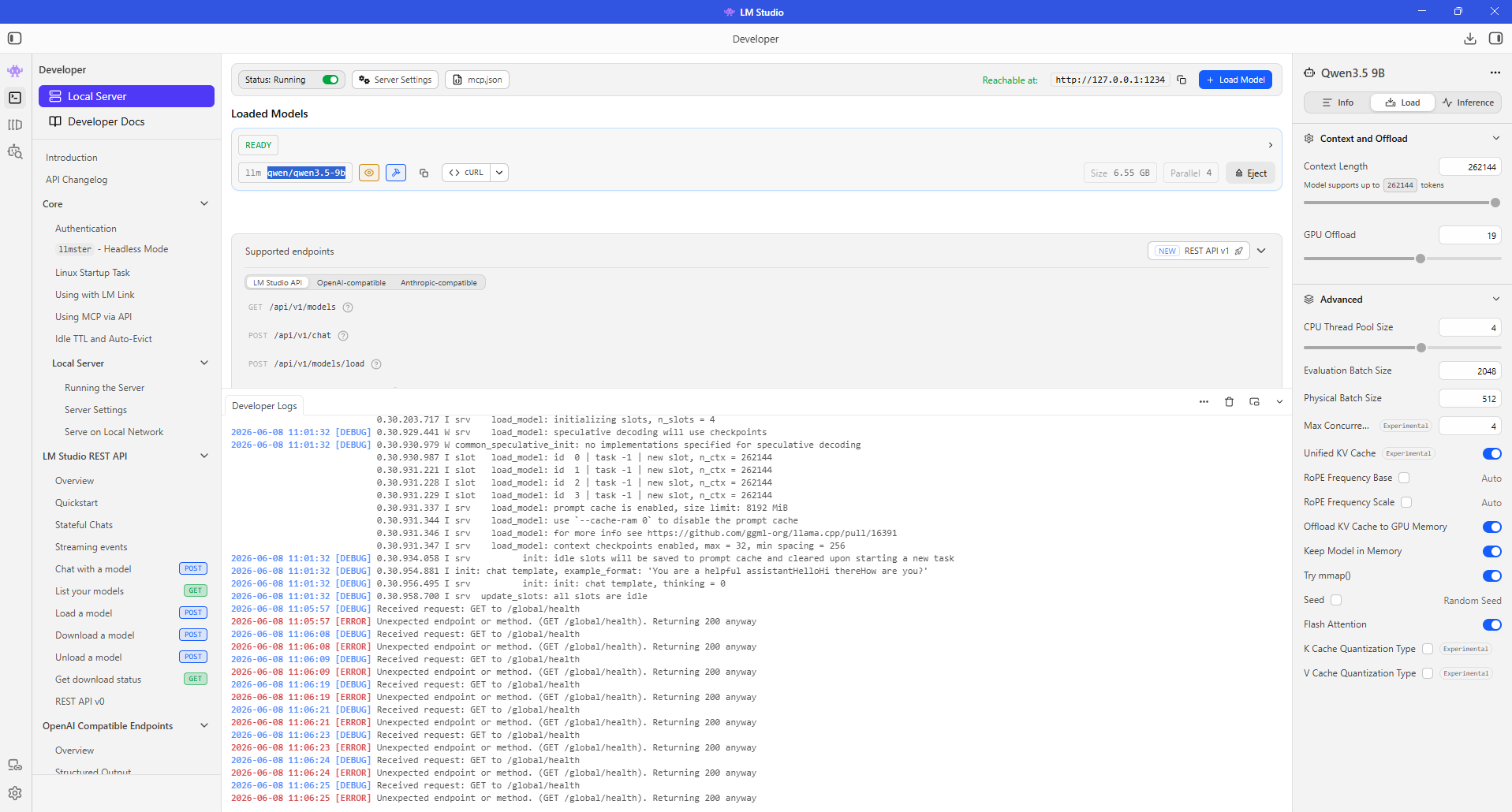
That VRAM ceiling makes a dense ~9B model the sweet spot, and the strongest thing in that class right now is Qwen3.5-9B.
- At Q4_K_M it’s roughly 6.1 GB of weights, which fits comfortably in 11 GB with plenty left for the KV cache and a generous context window.
- Apache 2.0 licensed. No custom “acceptable use” clauses, no asterisks.
- 256K native context and, critically for an agent, solid tool-calling support.
It is not a consolation prize. On this hardware, it’s the correct pick.
The obvious alternative was Gemma 4 E4B, Google’s edge-tier model, also Apache 2.0 (Gemma finally dropped its old bespoke licence, which is a quiet win for everyone). E4B is lighter and faster and leaves even more VRAM headroom. But it’s roughly half the effective parameters, and an agent loop punishes a weaker model far more than a chat window does: every malformed tool call stalls the whole task. For driving an agent, more model wins. E4B becomes the perfect foil for a future “do you even need the 9B?” post; for now, the 9B is the daily driver.
What about the headline-grabbing MoE models?
On a 32 GB+ box I’d absolutely be streaming a 30B-A3B coder model from RAM, and that’s a fantastic trick. On 16 GB it’s a swap-thrashing exercise in frustration. Know your real bottleneck. Here it’s RAM, not the GPU.
Step 2: Picking the runtime
A model is just a file. Something has to load it and expose an API. The single-user shortlist is short (LM Studio, Ollama, raw llama.cpp, KoboldCpp) and they all wrap the same llama.cpp engine and eat the same GGUF files. Which means raw token speed is nearly identical on the same hardware. So the tiebreaker was never tok/s. It’s ergonomics.
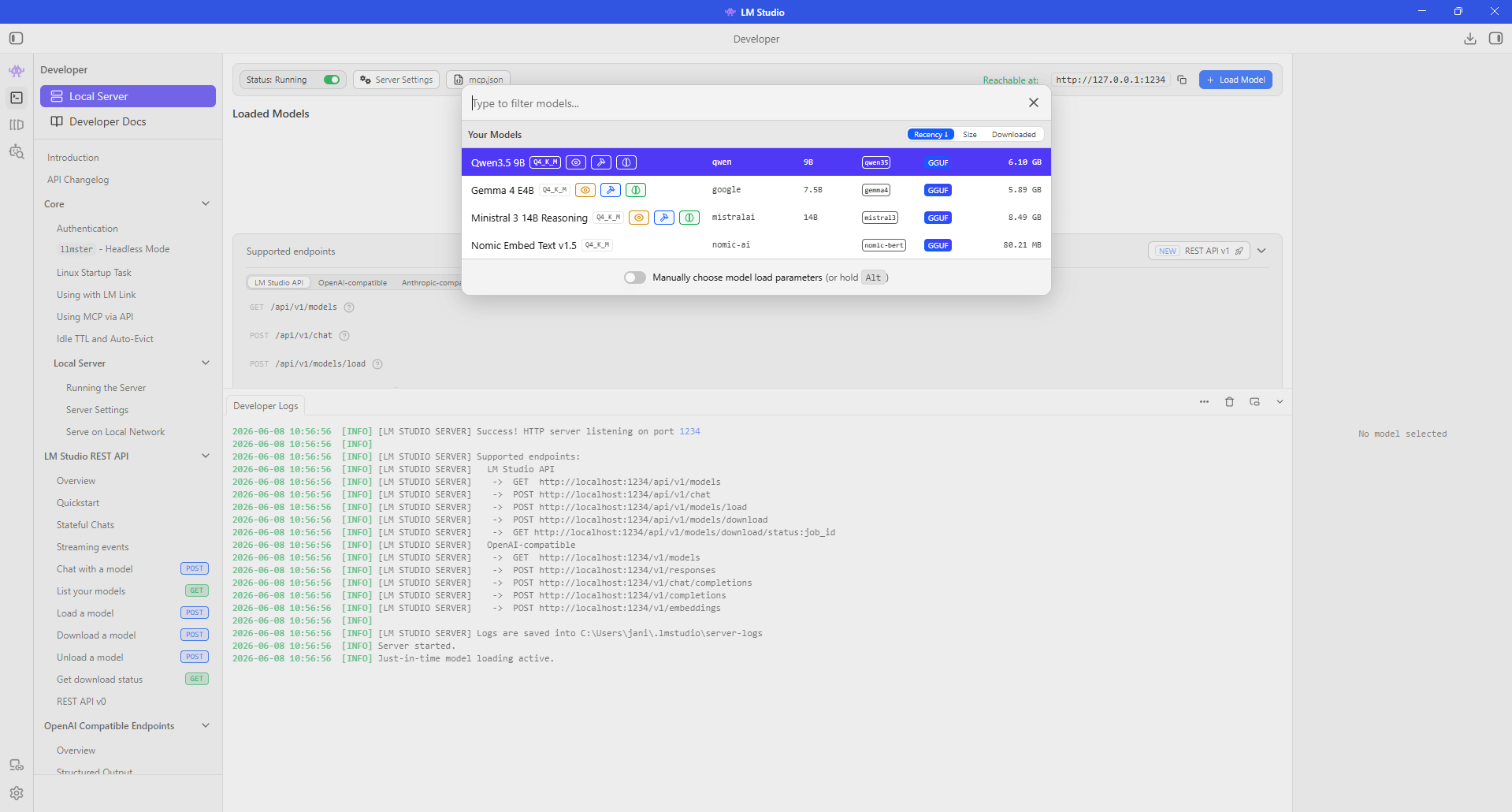
For personal use I want LM Studio, for one gloriously unglamorous reason: swapping models is two clicks. Browse Hugging Face from inside the app, download a GGUF, pick your quant, set the context in the load dialog, and you’re serving on an OpenAI-compatible endpoint at http://localhost:1234/v1. When you’re still figuring out which model earns a permanent spot, the tool that lets you load, test, and bin a candidate in under a minute is worth ten benchmark charts. This is exactly the phase I’m in, and convenience wins it outright.
The interesting part is what I ruled out, because two “faster” options are actively wrong for this card.
⚠️ Don’t reach for vLLM here
vLLM is brilliant – for production batching and many concurrent users on modern datacentre GPUs. For one person on one Pascal card it’s the wrong tool: Windows-hostile (Linux native), and its GGUF support was bolted on late and stays finicky. The right answer to a question nobody in a homelab is asking.
⚠️ ExLlamaV2 / EXL2 will be slower, not faster
This is the counter-intuitive one. EXL2 quants give the best throughput on modern NVIDIA cards because they lean hard on FP16. The 1080 Ti does FP16 at a famously crippled 1:64 rate, Pascal’s Achilles’ heel. So the format that looks fastest on paper is the format this card chokes on. GGUF K-quants run on the INT8/FP32 paths Pascal actually handles well. On old hardware, GGUF isn’t a compromise – it’s the right answer.
When to reach for Ollama instead
Quick myth-bust first: LM Studio went free for commercial use in July 2025: no licence, no form, no “contact sales.” So cost is not the reason to switch. The real distinction is that LM Studio is a closed-source, proprietary binary, while Ollama is open-source (MIT). If your organisation’s policy (or your own principles) require auditable, open software (security review, compliance, supply-chain hygiene, or plain FOSS conviction), that closed binary is a genuine constraint, and Ollama or the fully open-source Jan is the call. Ollama also runs headless as a background service, which suits an always-on server better than a desktop GUI. For a personal box where I just want to try things fast, LM Studio’s convenience still wins, but for anything commercial that has to pass an audit, reach for the open one.
There’s no secret turbo button for a 1080 Ti regardless. The high-throughput engines are tuned for hardware I don’t own. The only real decision is how raw you want to go: LM Studio (easy) → KoboldCpp (lean single binary) → llama-server (the performance ceiling, if you enjoy compiling things on a Friday night).
Step 3: Picking the harness
Now the fun part: what actually drives the model. Three harnesses, three jobs, plus a pair of control planes that ride on top.
opencode: a terminal coding agent, provider-agnostic by design. If you’ve used Claude Code, the mental model is identical; it just points somewhere else. It speaks OpenAI-compatible natively, so pointing it at LM Studio is trivial, and it’s lean enough that a 9B can keep up with its tool and context demands. This is the harness for the local model.
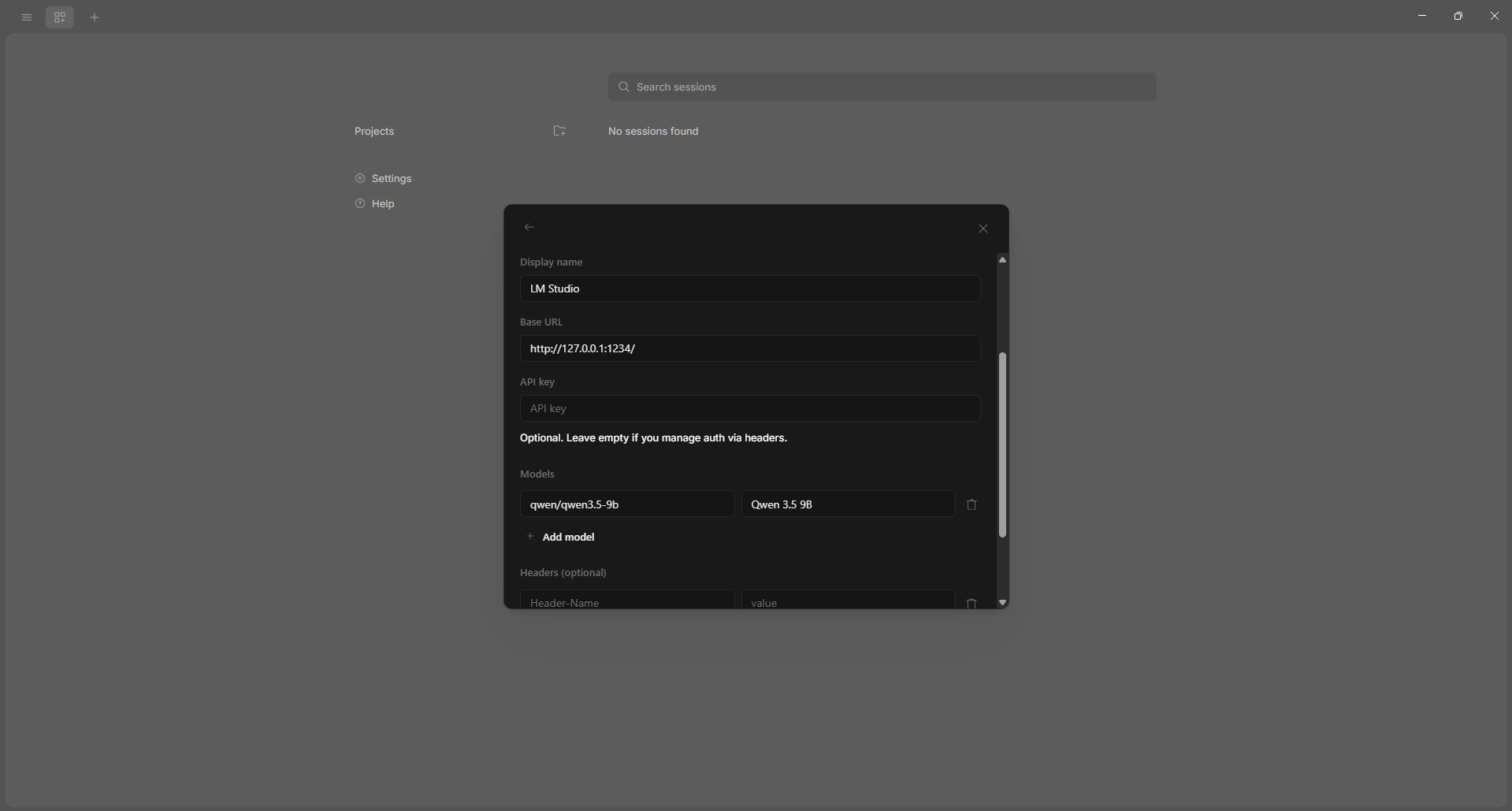
Two ways to wire opencode. The terminal version reads a small JSON config; the full walkthrough is Step 4. If you’d rather click than edit JSON, the desktop app does the same job from Settings → add provider: Display name LM Studio, Base URL http://127.0.0.1:1234/, leave the API key blank, then add one model with the ID qwen/qwen3.5-9b, exactly the dialog above. Both paths write the same provider; pick whichever you like.
Continue.dev: the in-editor piece, for VS Code (and JetBrains). Open-source, talks to LM Studio natively. The trick is to split the roles: a tiny fast model for tab-autocomplete (a 1–3B FIM model), and Qwen3.5-9B for sidebar chat and inline edits. A 9B is too slow for keystroke-by-keystroke completion but perfectly good for “explain this” and “refactor that.” Its agent mode is still rough around the edges: treat Continue as autocomplete + chat, not your agent.
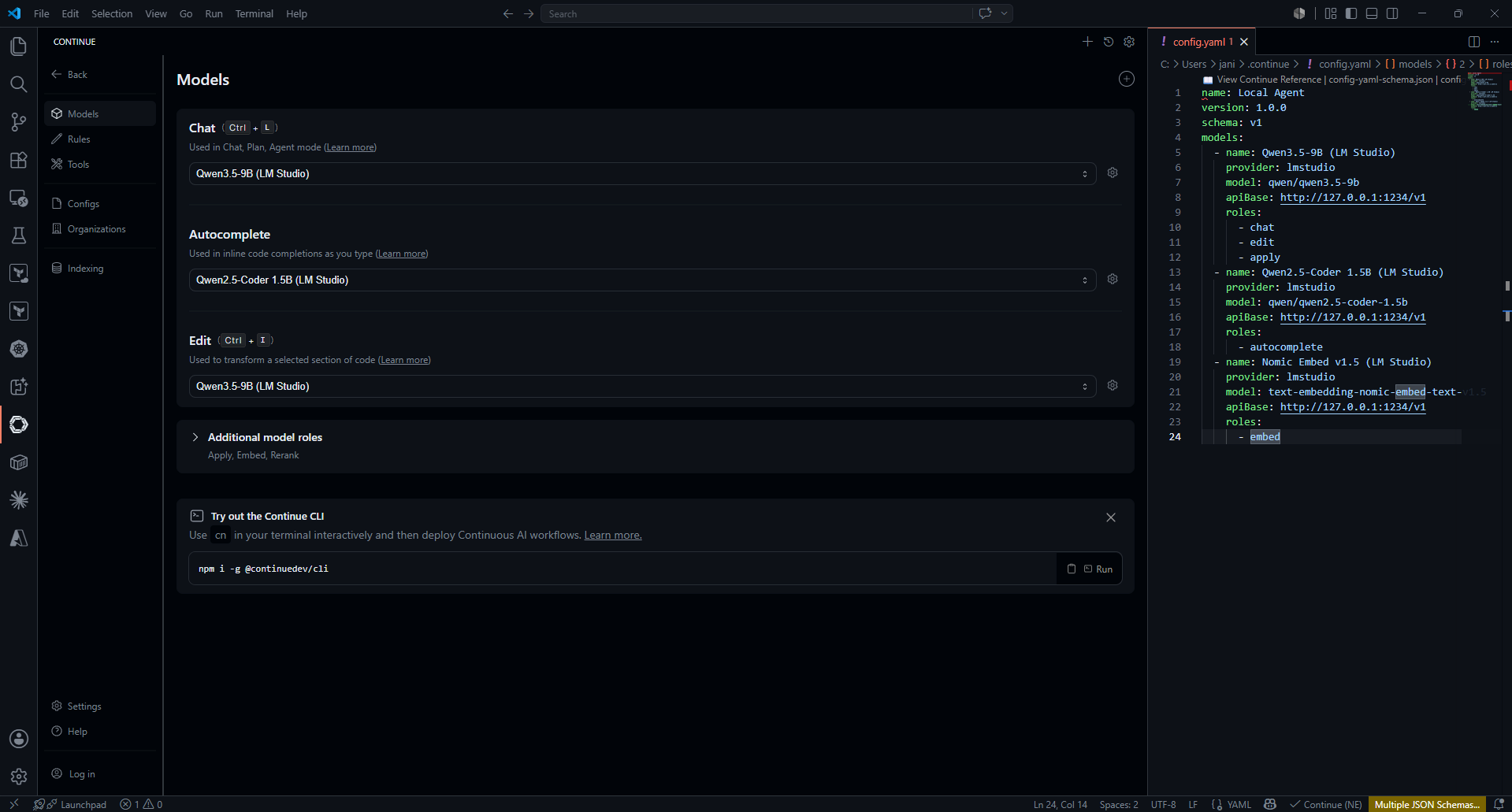
Setting it up: open the Continue panel, hit Ctrl-L for chat, click the model dropdown, and switch from the hosted “credits” providers to Local. Don’t just take the Ollama default. Choose “skip and configure manually”, which drops you straight into config.yaml. That file is the part worth getting right: point every role at LM Studio and split them as argued above: the 9B for chat, edit and apply; a small coder model for autocomplete; nomic for embeddings.
name: Local Agent
version: 1.0.0
schema: v1
models:
  - name: Qwen3.5-9B (LM Studio)
    provider: lmstudio
    model: qwen/qwen3.5-9b
    apiBase: http://127.0.0.1:1234/v1
    roles: [chat, edit, apply]
  - name: Qwen2.5-Coder 1.5B (LM Studio)
    provider: lmstudio
    model: qwen/qwen2.5-coder-1.5b
    apiBase: http://127.0.0.1:1234/v1
    roles: [autocomplete]
  - name: Nomic Embed v1.5 (LM Studio)
    provider: lmstudio
    model: text-embedding-nomic-embed-text-v1.5
    apiBase: http://127.0.0.1:1234/v1
    roles:
Two rules keep this from silently failing: each model: must match what curl http://127.0.0.1:1234/v1/models reports byte-for-byte, and every model you list has to be downloaded and loaded in LM Studio, not just the 9B.
Claude Code – and here’s a plot twist worth knowing. Claude Code speaks Anthropic’s Messages API, not OpenAI’s, so for a long time pointing it at a local model meant running a fragile translation proxy. As of LM Studio 0.4.1, that’s over: LM Studio added a native Anthropic-compatible /v1/messages endpoint, so you can point Claude Code straight at it with two environment variables and no proxy at all. Neat.
But “it connects” isn’t “it’s the right call.” Claude Code’s harness is built for frontier Claude: heavy system prompt, lots of tools, big-context assumptions. A local 9B tends to buckle under that weight even when the wiring is perfect. So Claude Code earns its keep with actual cloud Claude, for the heavy agentic work you don’t mind sending out, while opencode handles the private, offline, runs-on-my-card stuff. Horses for courses.
T3 Code – and once the terminal agent works, the real question is how you live in it. That’s where a new class of tool showed up in 2026: the control plane: a GUI that doesn’t run a model itself, it sits on top of the harnesses that do. T3 Code (from Theo at t3.gg; MIT-licensed, ~12k GitHub stars) is the dev-focused one: it orchestrates coding harnesses (Claude Code, Codex, Cursor, and, the one that matters here, opencode) behind a single surface, bring-your-own-subscription style, with a branch per thread and one-button commit/push/PR. It never talks to LM Studio directly; it drives opencode, which does. So the local route is unchanged: still opencode → LM Studio underneath. You just get a graphical cockpit with the git dance handled.
Wiring it: there’s nothing LM-Studio-specific to set inside T3 Code itself; it inherits whatever opencode already knows. So configure opencode → LM Studio first (Step 4, or the desktop dialog above), run opencode auth so T3 Code can see that harness, then pick opencode when you start a thread and your local model answers inside the GUI. (That’s T3 Code, the coding control plane, not T3 Chat, Theo’s separate hosted chat app.)
Odysseus: the other one comes from an unlikely source: PewDiePie. His Odysseus (also MIT-licensed, and past 50k GitHub stars within a week of its May 2026 launch) is a much broader animal: a full self-hosted AI workspace, not just a coding GUI. Chat, autonomous agents, Deep Research, email, calendar, notes, image generation, persistent memory: a genuinely private ChatGPT alternative running on your own box. Two things make it land here. Its Cookbook scans your hardware and recommends models that actually fit: the “what’s the smartest thing that fits in 11 GB?” problem from Step 1, automated. And its agent is built on opencode, the same harness I picked above. Point its chat at any OpenAI-compatible endpoint (LM Studio’s localhost:1234/v1 very much included) and your local model is doing the work.
Which is the quiet punchline of this whole section: both buzzy 2026 control planes (Theo’s and PewDiePie’s) are built on opencode. The unglamorous terminal agent from Step 4 is the engine under the shiny GUIs. So pick the face you like – raw TUI for purists, T3 Code if you live in git, Odysseus if you want a whole private workspace. The thing actually turning a 1080 Ti into a coding assistant is the same lean harness in all three. That’s how a local model stops being a benchmark curiosity and turns into something you reach for without thinking.
And there’s a bigger tell here, worth a grin. A few years ago these two were entertainers: PewDiePie the biggest gaming/IRL channel on the planet, Theo a skater who turned filming-and-editing instincts into one of the go-to coding channels. Now they’re both AI YouTubers who didn’t just review the tools but went and built their own control planes, in the open, MIT-licensed, shipping fixes weekly. That only happens when you’re leaning on something hard enough that its rough edges start to itch. When people with that kind of reach are dogfooding self-hostable local-AI tooling, the whole ecosystem gets dragged forward fast, and that’s pure upside for the rest of us running models on hardware we already own.
A note on the hybrid, and full disclosure
I run both. Local for anything private, offline, or not worth a single token of spend; cloud Claude for the genuinely hard refactors where the extra horsepower pays for itself. Full transparency: cloud Claude was hands-on for this project too: sanity-checking the local wiring, reviewing the code, and helping draft and quality-check this very post through its Cowork features. The local 9B does the private grunt work; Claude is the second pair of eyes that catches what I miss. If you want to kick the tyres on the cloud side this is all benchmarked against, here’s my invite link: claude.ai/referral/ILedIlRuDw. No pressure. The whole point of this post is that you increasingly don’t need it for the day-to-day.
Step 4: Wiring opencode to LM Studio
The plumbing is short, but three gotchas cost real afternoons. Here’s the clean path.
First, in LM Studio: load Qwen3.5-9B, set your context length, and start the server (Developer tab → Running). Then confirm what it’s actually serving:
curl http://localhost:1234/v1/models
Write down the model ID verbatim. You’ll need it next, and a mismatch here is the single most common failure.
Now create ~/.config/opencode/opencode.json:
{
  "$schema": "https://opencode.ai/config.json",
  "disabled_providers": [],
  "provider": {
    "lm-studio": {
      "name": "LM Studio",
      "npm": "@ai-sdk/openai-compatible",
      "options": {
        "baseURL": "http://127.0.0.1:1234"
      },
      "models": {
        "qwen/qwen3.5-9b": {
          "name": "Qwen 3.5 9B"
        }
      }
    }
  }
}
Three fields do the work: @ai-sdk/openai-compatible tells opencode to treat this as a generic OpenAI API; baseURL must end in /v1 (a frequent omission); and the key under models must match the ID from /v1/models byte-for-byte.
If opencode demands auth for the local provider, run opencode auth login, choose Other, use lmstudio as the provider ID, and enter any non-empty string; LM Studio doesn’t validate local keys.
⚠️ The catalogue-merge trap
If opencode insists on sending a model ID the server doesn’t recognise, the culprit is almost always opencode’s built-in LM Studio catalogue being merged into yours, so the wrong ID goes out on the wire. Pin explicit model IDs (as above) and make them match /v1/models exactly.
⚠️ Loaded ≠ downloaded
The /v1/models endpoint lists everything you’ve downloaded. Only a loaded model actually answers. The confusing symptom: opencode lists the model fine, then every request hangs. The model is downloaded but not loaded in LM Studio, and this is precisely where LM Studio’s two-click model swapping earns its place: load the one you want, done.
Tool-call formatting is the real ceiling
Local models are far more sensitive to tool-call formatting than cloud ones, and the agent loop is exactly where it shows. A model that writes clean code in chat can still flub the structured call opencode needs to edit a file, and when it does, the agent stalls. Qwen3.5-9B holds up because it’s trained for tool use, but expect the occasional miss and give it tighter, more explicit prompts than you’d hand Claude.
For a real test, skip the chat questions and give it an agentic task: “the test in foo_test.py is failing, find why and fix it.” That exercises the whole loop: read → reason → edit → run → check. A dense 9B living entirely in VRAM feels genuinely snappy here, because nothing is streaming over PCIe. Generation is limited only by the card itself.
The honest verdict
Local models are slower and a notch below the cloud frontier. There’s no spin that makes that untrue. What changed in 2026 is that the gap closed enough that a small local model lands roughly where last year’s frontier cloud models did, which is a perfectly useful place to be for a great deal of everyday work.
So here’s what actually runs, on a card most people threw out years ago:
- A terminal coding agent (opencode) that reads, edits, and runs code, entirely offline.
- In-editor autocomplete and chat (Continue.dev) in VS Code.
- Zero API spend, zero code leaving the machine, zero meter running.
Not bad for 11 GB of 2017 silicon and an afternoon of wiring.
Summary
The whole exercise comes down to respecting the constraint. 11 GB of VRAM and 16 GB of RAM picked the model (Qwen3.5-9B, dense, fully resident) before I picked anything else. Pascal’s weak FP16 picked the format (GGUF, not EXL2) and quietly disqualified the “fast” engines. From there it was just plumbing: LM Studio to serve (because for personal use, loading a new model in two clicks beats every spec-sheet argument), opencode to drive, Continue.dev in the editor, and Claude Code held in reserve for when the cloud genuinely earns it. Need an open, auditable runtime for work? Swap LM Studio for Ollama and carry on.
But a working agent is just a tool looking for a job. Self-hosting your Git keeps your code on your hardware. Self-hosting your inference keeps your prompts there too. My infra is up; my AI is up.